
Where There's Life, There's Hope
Chapter One · Linux System Administration, 2026

Somewhere in your home or office may sit a computer that still works and nobody wants. It turns on. It runs. For years, it did its job without complaint. Then one morning, Microsoft called it dead — too old for Windows 11 — and cut it off from the security updates that keep it safe. End of life, they call it.
The machine never got the message. You can still boot it in seconds. Nothing inside it broke. Microsoft condemned it — with a date, not a defect.
Hope lives in that title. The computer everyone wrote off has years of good life left, and you’ll hand it back. By the end of these pages, the machine they buried will run Linux — current, protected, quiet, and yours. You need no special skill. You need the machine, a USB drive, and about an hour.
Do it once, and you’ll see the ground the rest of this book stands on: bring one machine back, and you can bring back a roomful, an office, a whole company. Everything starts with the first machine.
The plan, in one breath
Let me lay out the whole thing before we start, so nothing ambushes you ahead.
Right now, the machine runs Windows. You’ll replace Windows with Linux Mint — a free operating system that looks and behaves much like the Windows you already know, runs light on older hardware, and never expires on someone else’s calendar. To do it, you’ll copy the Mint installer onto a USB drive, tell the computer to start from that drive instead of from Windows, and let it install Mint on the machine.
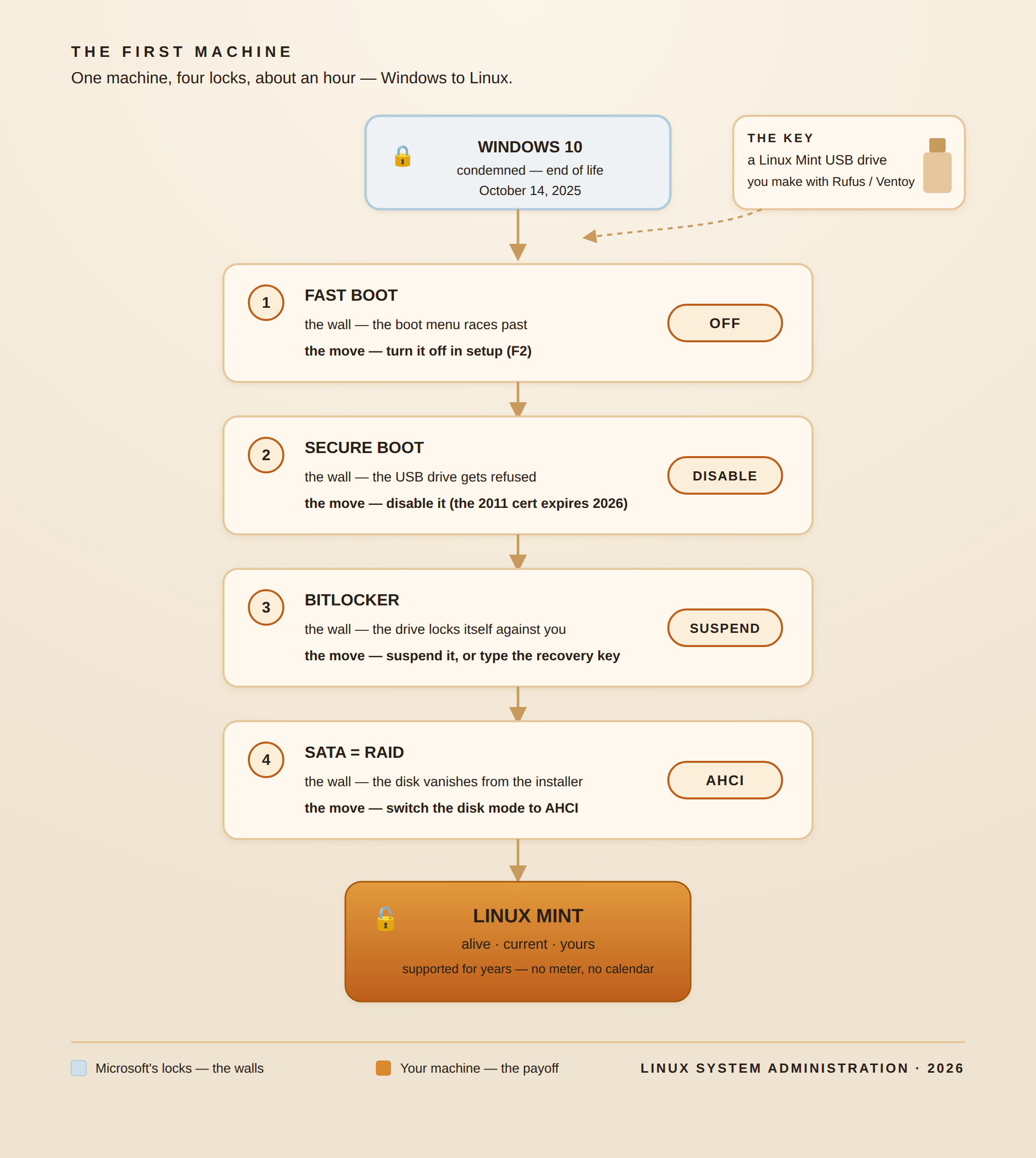
Simple on paper. The catch: Windows doesn’t leave quietly. Microsoft built a handful of locks into these machines to stop anything but Windows from starting, and most of this chapter walks you past those locks, one at a time. None of them will hold you once you spot it. You’ll meet each one. You’ll get past each one.
Make the USB drive
Put two things on the table: the computer you’re rescuing, and a USB drive — 8 gigabytes or larger, with nothing on it you want to keep, because this erases it.
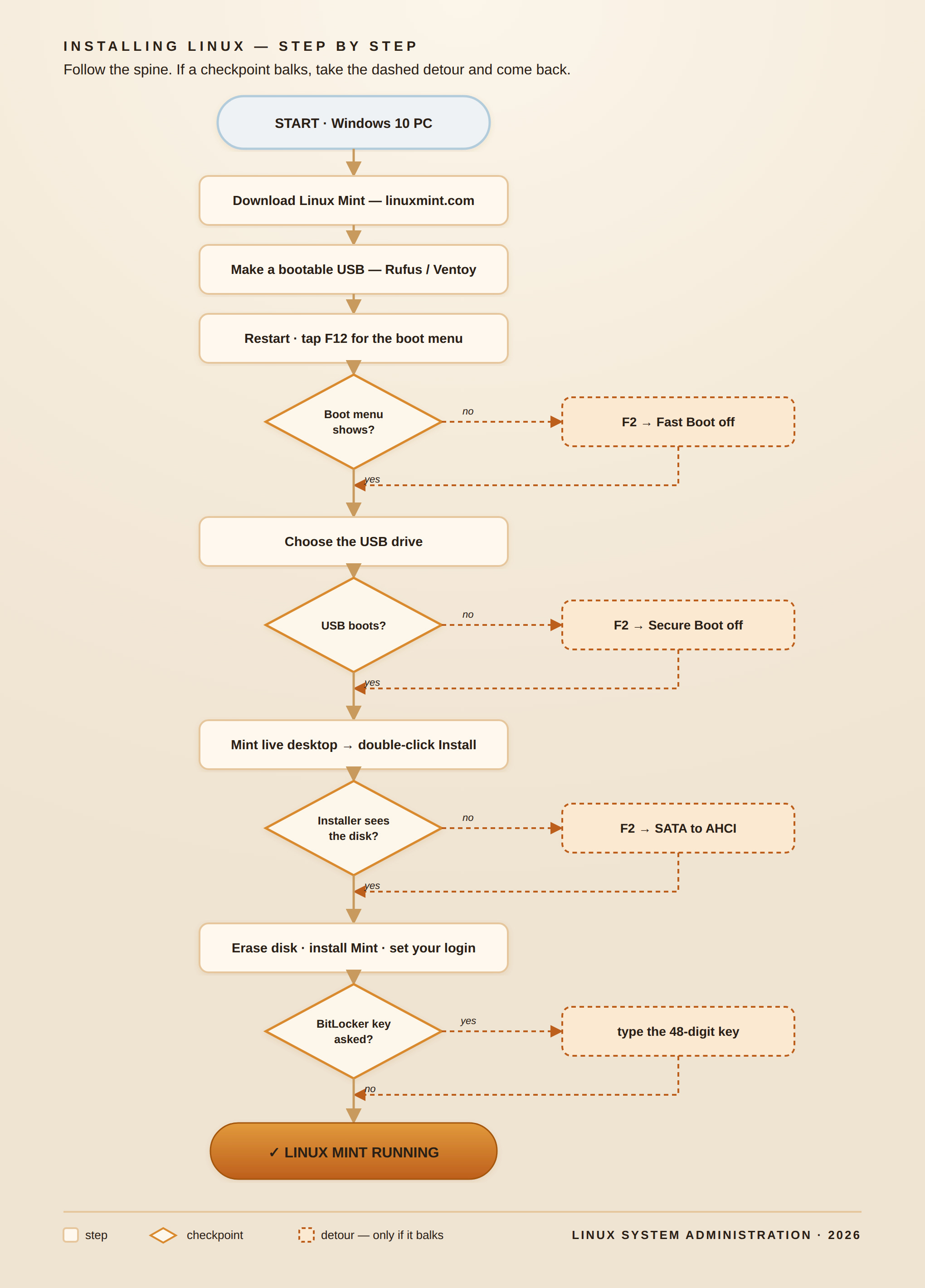
First, the installer. On any working computer, go to linuxmint.com and download Linux Mint. The site offers a few editions — take Cinnamon, the standard one; if the machine drags with age, take Xfce, which rides lighter. Either way, you get one large file, an ISO — picture the whole operating system boxed up in a single download.
Now you turn that file into a startable USB drive. A plain copy won’t do it. A small, free program has to make the drive bootable, and it does the work for you:
Rufus (download it from rufus.ie), if you’re rescuing this one machine. Open Rufus, pick your USB drive at the top, click SELECT, and choose the Mint file you downloaded, then click START and let it run. A few minutes, and the drive holds a working Mint installer.
Ventoy (download it from ventoy.net), if you can already tell, you’ll do this more than once. Ventoy sets the drive up one time; after that, you just copy Mint — and any other system you like — straight onto it and choose at startup. Set it up once, and you carry a workbench in your pocket.
Your drive holds the installer now. Next, you get the machine to look at it. Here it starts to push back.
The machine won’t look
Plug the drive in and restart the computer. As it starts, you want the little menu that lets you pick what to start from — on most machines, you call it up by tapping a key the moment the maker’s logo flashes (often F12, sometimes F9 or Esc; many machines flash the right key on screen for a heartbeat).
Except the logo comes and goes before you catch it, and Windows loads as if you’d never touched a key. You try again. Same thing.
Clumsiness didn’t cause that, and neither did a slow machine. Microsoft set the computer to start too fast to interrupt — a small “convenience” that also happens to keep you locked inside Windows. This first lock works like a closing door, not a wall, and you’ll prop it open.
Get underneath: the setup screen.
Every computer carries a settings screen that lives beneath Windows — the firmware, the software the maker baked into the machine itself. Microsoft doesn’t run here, and here you’ll spend the next few minutes.
Restart, and this time tap the setup key steadily the instant the logo appears — usually F2 on a Dell, sometimes F1, F10, or Delete on other makes. Keep tapping until a plain, old-fashioned settings screen replaces the logo. Don’t let the look of it worry you; nothing here bites, and nothing you change sticks unless you save it.
Find the setting called Fast Boot (often under a heading like POST Behavior or Boot) and turn it off. That props the closing door open. While you’re at it, Windows keeps its own version of the same trick: back in Windows, open Control Panel → Power Options → “Choose what the power buttons do,” and turn off “Turn on fast startup.” Now the machine pauses long enough to let you in.
The machine refuses the drive
Restart, catch the boot menu — it waits for you now — and choose your USB drive. And the machine refuses it. It drops you back to the menu or throws up a black screen with a cold line about a signature.
You did everything right. The drive works. The machine turns it away anyway.
Here’s why, and it pays to understand this, because it sits at the heart of the whole story. Before it starts anything, the firmware checks that the boot-up program carries a signature it trusts — and every signature it trusts traces back to one company’s key: Microsoft’s. The check wears a friendly name — Secure Boot — and does a real job: it keeps malicious code from hijacking the start-up. It also, not by accident, lets Microsoft decide what a machine will and won’t run. Your Mint drive tripped that check. Secure Boot guards the last door — the reason the desktop stayed Microsoft’s long after the company lost the servers, the web, and the phone in your pocket.
And in 2026, a twist earns a small, dark laugh. The certificate behind that lock — Microsoft issued it back in 2011 — expires this year. It runs out in June, the same certificate that vouches for Linux itself. The lock rusts shut on its own schedule. You could wait for Microsoft to mail every machine a new one. Or you can do what this chapter does: take the lock off the door and walk through.
Back into the setup screen. Find Secure Boot — its own entry, sometimes tucked under Boot — and switch it to Disabled. Save, and leave.
The machine’s last defense: BitLocker
Before you restart, one more lock deserves a warning, because it can catch you cold and, for a moment, look like a disaster.
On many of these machines, a Windows feature called BitLocker scrambled the entire hard drive — encrypted it — at the factory. It earns its place: steal the machine, and a thief can’t read a thing off the drive. But BitLocker watches the very settings you just changed. Turn off Secure Boot, change how the machine starts, and BitLocker decides that something suspicious happened. So it locks the drive — exactly as designed — against you.
If it triggers, a stark blue screen demands a recovery key: forty-eight digits you’ve never laid eyes on. Don’t panic, and don’t force anything. The key exists, and you own it. On your phone, sign in to your Microsoft account at account.microsoft.com/devices, find this computer, and open its recovery keys — the digits wait right there. Type them in, and the machine opens.
Better still, head it off before it starts. Back in Windows, open Control Panel → BitLocker Drive Encryption → Suspend protection, and BitLocker stands down without a fight. And once you wipe Windows off this machine for good — exactly where this chapter heads — BitLocker goes with it, and you never hear from it again.
The disk that vanishes
Choose the USB drive again, and this time it starts. The screen goes dark, a short menu offers to start Linux Mint, and a full desktop rises out of the machine — a taskbar, a menu, a clock, all running from that little drive without touching a thing on the computer. Sit for a second. You haven’t installed anything yet. You haven’t lost a thing. The old machine just proved it can still do this.
When you’re ready to keep it, you’ll find an Install Linux Mint icon right there on the desktop. Double-click it. It asks a few easy questions — language, keyboard, your time zone — and then the one that matters: where should Linux go? It shows you the drives it can see.
On some machines, your drive never shows up. The installer swears the computer has no disk at all.
A drive sits six inches from your hand, and Linux can’t find it — not because Linux fell short, but because the maker set the machine’s disk to a special mode Windows likes and other systems can’t read. It stands last in your way, and it takes thirty seconds to clear.
Go back into the setup screen one more time, find the setting for how the disk runs — often SATA Operation — and change it from RAID to AHCI, the plain, standard mode every operating system understands. Save, restart to your USB drive, open the installer again, and your disk appears.
Give the machine to Linux
The hard part sits behind you now, and the rest runs easily. The installer offers to erase the disk and install Linux Mint — one machine, one operating system, the whole drive going to a clean start. Choose it. Pick your name, a name for the computer, and a password you’ll remember. Click Install, and watch the bar cross the screen while the fan hums. Ten or twenty minutes, and the machine asks to restart. Pull out the USB drive when it tells you to.
What you’ve brought back
The computer starts one last time and comes up into Linux Mint — its own login, its own desktop, no USB drive needed. It boots fast. It runs clean. And it will take security updates for years.
An hour ago, a company in Redmond had written this machine off as dead and walled it behind a fast-closing door, a signed lock, an encrypted drive, and a hidden disk. Now it lives — current, quick — and it answers to you and no one else. Where there’s life, there’s hope, and a great deal more life ran in it than they let on.
One thing here deserves a moment. You just did, by hand, what a corporation pays a whole department to do. And no, you won’t spend your days walking a USB drive from desk to desk. Nobody runs an office that way, and this book won’t ask you to. Once you understand what you did to this one machine, you can teach a machine to hand Linux to the next one over the network, and to a hundred after that, without a single USB drive in sight. One rescued computer becomes a room of them; a room becomes a company running on hardware the world threw away.
You’re not alone
You didn’t do this first. Not by a long shot.
France’s national police force runs Linux. The Gendarmerie Nationale began moving off Windows in 2008; by June 2024, it ran an Ubuntu-based Linux on 103,164 of its workstations — 97% of the force, and one of the largest desktop-Linux deployments anywhere.
Germany does it now. The state of Schleswig-Holstein voted in 2024 to move all 30,000 of its government PCs off Windows and Microsoft Office onto Linux and LibreOffice, and through 2025, it pulled Microsoft Exchange and Outlook from more than 40,000 mailboxes. It gives the reason this book keeps circling: sovereignty — a government that owns its own tools.
Does the EU use Linux? Yes. Around 70% of the European Commission’s own servers run Linux, and the EU has written open source into its official strategy as its road to technological independence.
And the enterprise never left. Linux runs most of the world’s web servers, every one of the world’s 500 fastest supercomputers, and the mission-critical work inside most of the Fortune 500. The machines that run the internet already run Linux. Now you bring one of them home to your desk.
The road runs on from here. Today you brought one machine back from the dead. From here, we build.
Sources
Every fact in this chapter, and where to check it:
Windows 10 support ended on October 14, 2025. Microsoft, “Windows 10 support has ended on October 14, 2025.” support.microsoft.com
Windows 11 requires TPM 2.0 and a supported processor. Microsoft, “Windows 11 Specifications.” microsoft.com/windows/windows-11-specifications
The Secure Boot certificate expires in 2026. Microsoft’s UEFI CA 2011 runs out June 27, 2026, and signs third-party bootloaders — the Linux shim among them. Microsoft, “Windows Secure Boot certificate expiration and CA updates,” support.microsoft.com; Red Hat, “Expiration of Secure Boot signing certificates in 2026,” redhat.com.
Firmware setup (F2), the boot menu (F12), and disabling Secure Boot on Dell hardware. Dell Technologies support and community forums, dell.com/support.
Switching SATA Operation from RAID to AHCI so Linux detects the drive, and the BitLocker recovery key. Dell Technologies knowledge base, dell.com/support; recovery keys at account.microsoft.com/devices.
Linux Mint, and making a bootable USB drive. Linux Mint Installation Guide, linuxmint-installation-guide.readthedocs.io; Rufus, rufus.ie; Ventoy, ventoy.net.
France’s national police runs Linux. The Gendarmerie Nationale runs an Ubuntu-based Linux (GendBuntu) on 103,164 workstations — 97% of the force — as of June 2024. Wikipedia, “GendBuntu,” en.wikipedia.org/wiki/GendBuntu.
A German state is moving off Windows now. Schleswig-Holstein is migrating 30,000 government PCs to Linux and LibreOffice. The Document Foundation, “German state moving 30,000 PCs to LibreOffice,” blog.documentfoundation.org; The Register, theregister.com.
The EU runs on Linux and backs open source by strategy. Around 70% of European Commission servers run Linux. European Commission, “The EU Open Source Strategy,” digital-strategy.ec.europa.eu.
The enterprise runs on Linux. Linux powers 100% of the TOP500 supercomputers (since 2017) and most of the world’s web servers. TOP500, top500.org; W3Techs, “Operating systems used by websites,” w3techs.com.
© 2026 Tom Adelstein. All rights reserved. Rights available for licensing — inquiries welcome.